Canva vs Figma for Kids: Which Design Tool Fits Your Child?
A practical comparison for school projects, creativity, app ideas, and visual communication
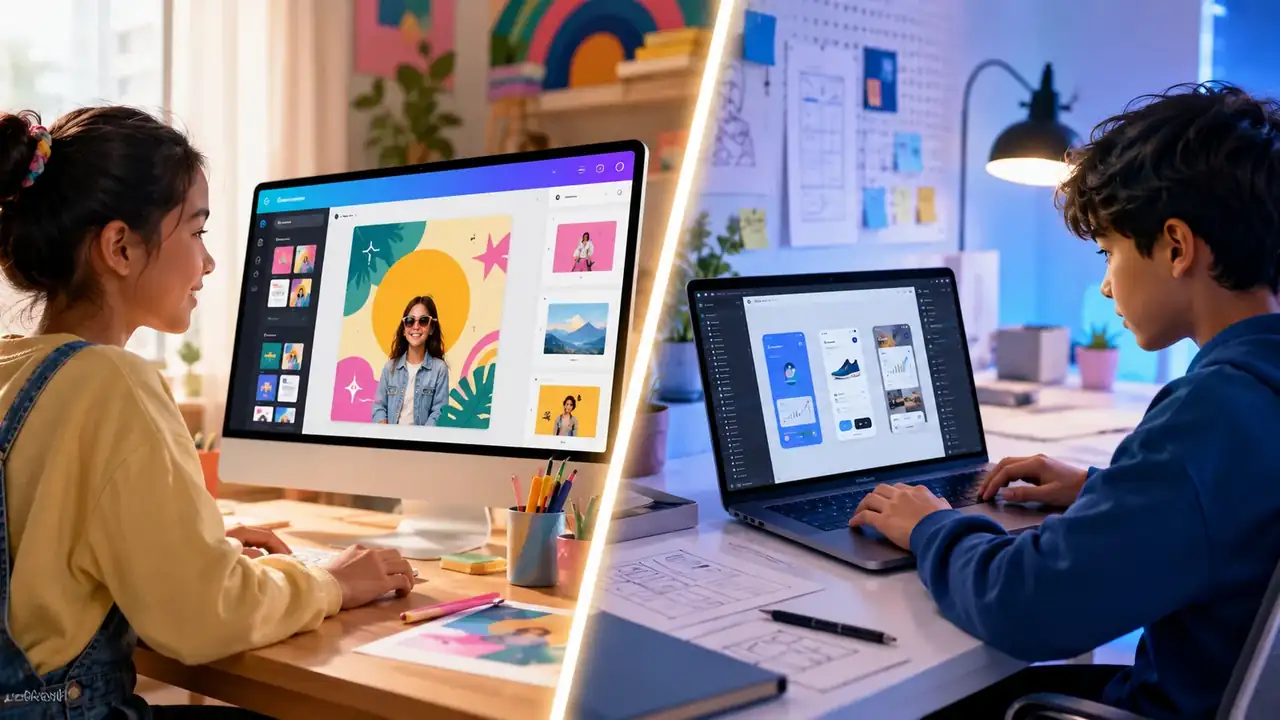
Design is becoming a practical skill for students. Children who can present ideas clearly, structure information visually, and create digital projects gain confidence beyond art class.
Canva and Figma are both useful, but they serve different learning goals.
Quick recommendation
- Choose Canva for school presentations, posters, infographics, simple videos, and fast visual projects.
- Choose Figma for older children or teens interested in app design, website layouts, prototypes, and user experience.
- Use Canva first if your child is new to digital design.
What Canva teaches
Canva helps children communicate ideas visually. It is template-driven, easy to learn, and useful for real school tasks. A child can quickly create a presentation, poster, worksheet, graphic, or project cover.
The main skill is visual communication: choosing layouts, organizing information, using images responsibly, and making ideas easier to understand.
What Figma teaches
Figma is more advanced. It teaches structured design thinking, interface layout, collaboration, and prototyping. It is closer to how real product designers plan apps and websites.
Figma is best when a child wants to design how something works, not just how something looks.
Age fit
Canva usually fits ages 10+ with guidance. Teens can use it independently for school and creative projects. Figma usually fits ages 13+ because it has more complex design concepts and workflows.
School projects vs product thinking
Use Canva when the goal is a finished visual project. Use Figma when the goal is planning an experience, such as designing an app screen, website homepage, or clickable prototype.
Parent project ideas
- Canva: design a poster explaining a science topic.
- Canva: create a presentation about a book or historical event.
- Figma: design a homework tracker app screen.
- Figma: prototype a simple website for a hobby or school club.
Common mistakes
- Letting templates replace thinking.
- Judging design only by decoration instead of clarity.
- Starting Figma too early and making design feel frustrating.
- Ignoring copyright and image source habits.
Final verdict
Canva is the better first design tool for most children. Figma is the better next step for teens who enjoy digital products, apps, and websites.
The strongest approach is simple: start with Canva for visual confidence, then move to Figma when your child wants to design interactive ideas.
How design tools build real skills
Design tools are useful when children learn to communicate an idea visually. A poster, presentation, app mockup, or infographic can build clarity, audience awareness, and creative judgment.
The best design practice is not making something look busy. It is choosing what matters, removing clutter, and explaining why the design helps someone understand the message.
Parent review questions
- What is the main message?
- Who is the design for?
- What did you change after feedback?
- What part makes the idea easier to understand?
Recommended next steps
For a more personal starting point, open the Canva parent guide. If your child is ready for a practical path, continue with the Figma parent guide.