Best Coding Tools for Kids: Parent Guide
Compare Scratch, Code.org, Tynker, and beginner coding paths by age and learning style
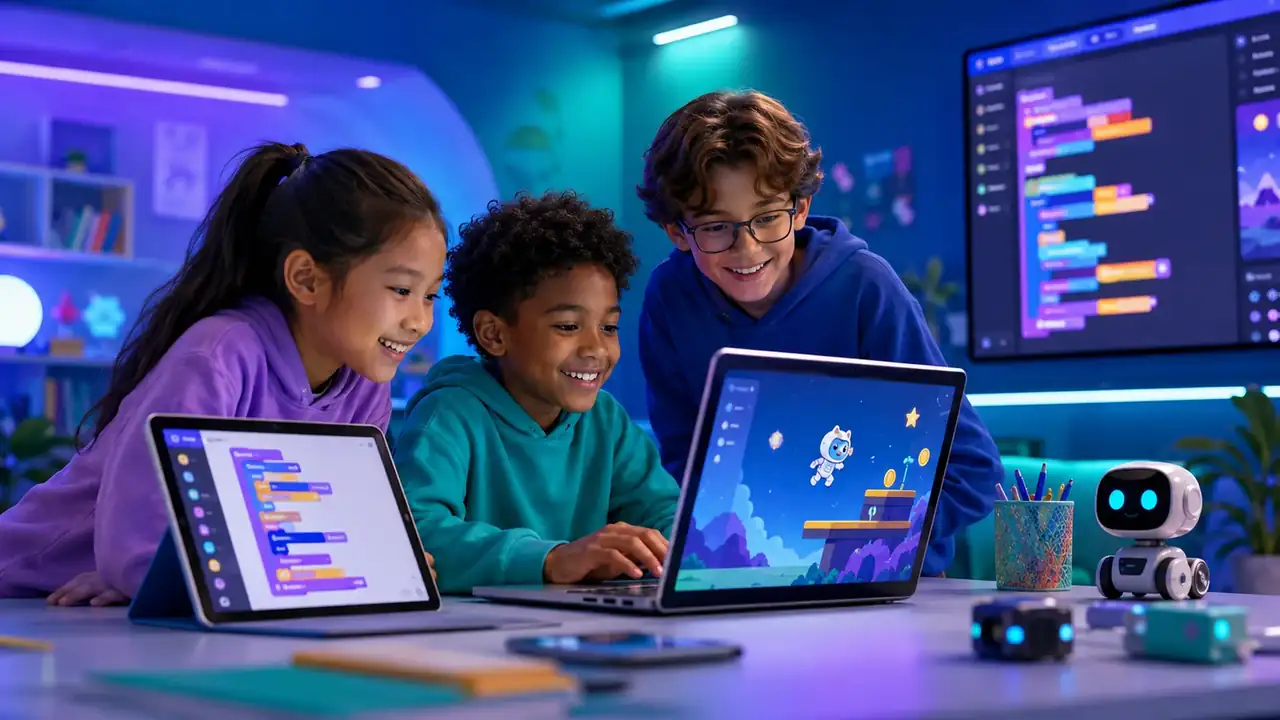
Choosing a coding tool for a child should not start with the most advanced language. It should start with the question: what will this child actually build, finish, and feel proud of?
The best coding tools for kids are the ones that turn logic into visible projects: games, animations, quizzes, websites, robots, or small apps. A tool is only useful if it helps the child practice thinking instead of simply following instructions.
Quick comparison: best coding tools for kids
| Tool | Best for | Free/Paid | Parent verdict |
|---|---|---|---|
| Scratch | First games, stories, and visual coding | Free | Best first stop for playful project-based coding. |
| Code.org | Structured beginner lessons | Free | Best when your child needs a clear guided path. |
| Tynker | Game-style coding progression | Free starter content + paid plans | Best upgrade when a child wants more structure than Scratch. |
| Khan Academy | Computing, math, and academic foundations | Free | Best support tool for older kids who like self-paced learning. |
| Python starter resources | Older students ready for text-based coding | Usually free | Best after the child already understands basic logic. |
Best overall first coding tool: Scratch
Scratch is the safest default recommendation for many families because it lets children build immediately without syntax errors. It teaches sequencing, loops, events, variables, debugging, and creative problem-solving through visual blocks.
Best for: ages 8-12, creative learners, animation, simple games, and first coding confidence.
Parent verdict: start here if your child has never coded before and you want coding to feel like making, not memorizing.
Best structured path: Code.org
Code.org works well when a child needs structure. It is less open-ended than Scratch, but it gives families a clear sequence and makes it easy to complete a small lesson without planning everything yourself.
Best for: younger beginners, classroom-style learning, and parents who want a simple weekly routine.
Parent verdict: choose Code.org when your child does better with step-by-step activities than an open blank canvas.
Best paid-style upgrade: Tynker
Tynker is useful when a child already enjoys coding and wants more challenge, levels, and progression. It can bridge from block coding toward Python or JavaScript, but parents should check whether the paid content is worth it for their child.
Best for: kids who like games, challenges, and a more guided coding journey.
Parent verdict: choose Tynker when your child has momentum and needs a next step beyond Scratch.
Best for older self-paced learners: Khan Academy
Khan Academy is not only a coding platform, but it is helpful for the academic foundations behind computing: math, logic, science, and structured practice.
Best for: older students who like independent learning and need stronger foundations.
Parent verdict: use it when there is a specific topic to master, not as random extra homework.
How to choose by age
- Ages 6-8: start with Code.org or highly supervised Scratch activities.
- Ages 8-10: use Scratch projects and simple Code.org lessons.
- Ages 10-12: compare Scratch, Tynker, robotics, and beginner web projects.
- Ages 13+: introduce Python, JavaScript, app ideas, game development, or Arduino when the child is ready.
What parents should look for
- Can the child build something visible?
- Does the tool encourage debugging and iteration?
- Is the pricing clear?
- Are accounts, comments, sharing, and community features safe for your child?
- Does the tool create a habit or just entertainment?
Recommended starter path
Start with one free tool first. Try Code.org for a lesson, Scratch for a small project, and only then consider a paid coding path like Tynker. If your child loves physical building, move from coding into robotics with LEGO Education, Sphero, or Arduino.
Next step: take the free assessment or open the coding roadmap to match tools to your child's strengths.
Free vs paid: when should parents upgrade?
Do not pay for a coding platform immediately. First, look for evidence that your child enjoys the activity: they return to it, ask how to fix bugs, show you what they made, or invent a second version.
A paid plan makes more sense when the free tool is no longer enough and your child wants a clearer path, more challenges, or a structured course.
One-week starter test
- Day 1: Complete one simple Code.org activity.
- Day 2: Open Scratch and remix a beginner project.
- Day 3: Ask your child to change one rule, character, or background.
- Day 4: Watch them explain how the project works.
- Day 5: Choose whether they need more free exploration or a more structured tool.
Bottom line for parents
Most children should start free, visual, and project-based. Scratch and Code.org are enough for the first stage. Tynker and text-based coding are better as follow-up steps once your child has proved interest and confidence.
Before choosing a tool
- Start with one free or low-friction option before adding paid complexity.
- Check privacy, account settings, sharing features, and community areas.
- Ask your child to show what they made or explain what improved.
- Stop using a tool if it creates more distraction than learning.
Recommended next steps
For a more personal starting point, open the Scratch parent guide. If your child is ready for a practical path, continue with the coding roadmap.